Per-Title Filter Overrides
Customize filter settings for individual audiobooks and podcasts, independent of your global defaults.
Why use overrides?
Your default filters are a good baseline, but sometimes one title needs different settings. A history audiobook might have violence you want to hear in context, while a comedy podcast might need stricter Crude Humor filtering.
Per-title overrides change the filters for one audiobook or podcast. Your defaults stay the same for everything else.
Setting an override
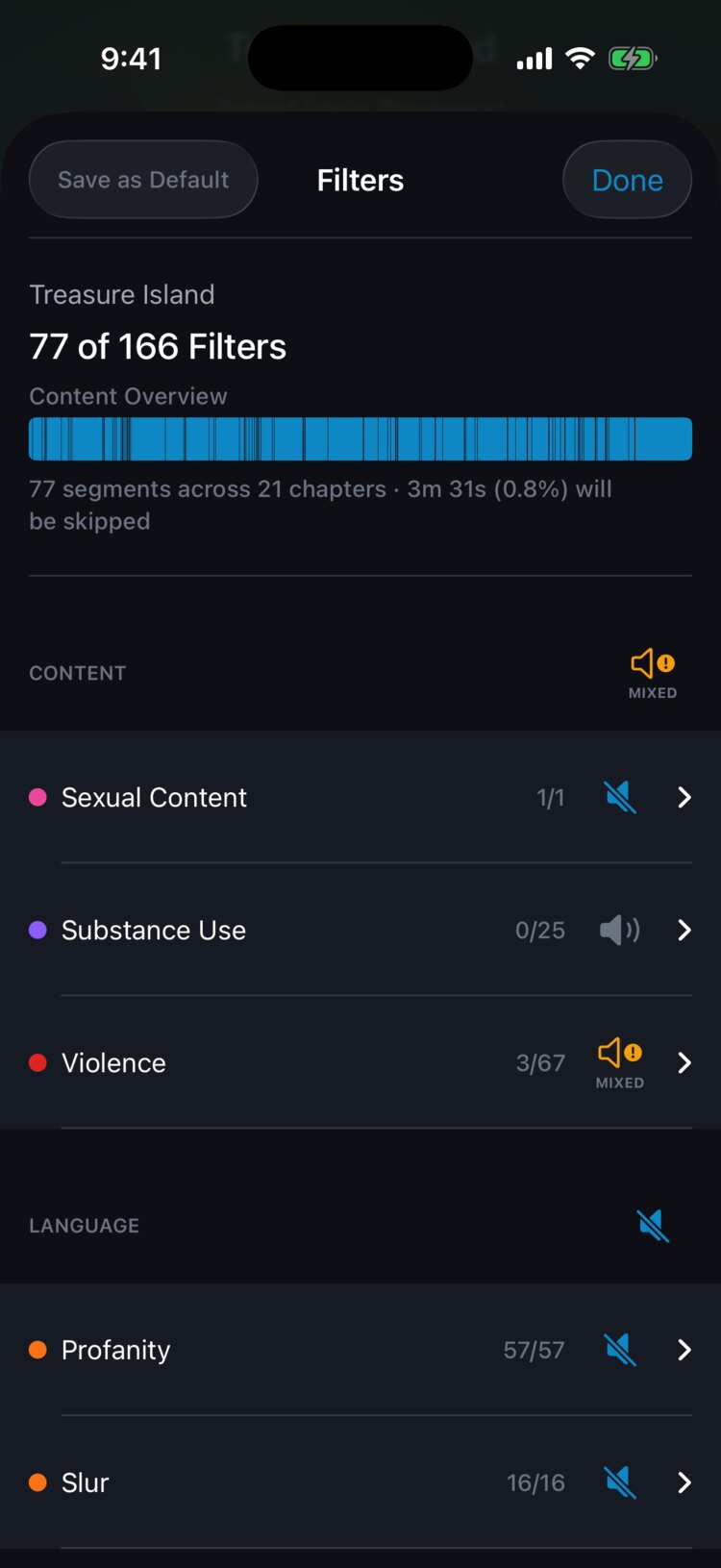
Open the book's detail page and tap the Filters button, which shows how many filters are on (for example "77/166 Filters"). You can also tap Filters on the Now Playing screen. Both open the filter sheet for that title.
Turn categories on or off, switch individual severity levels, or turn single words on or off in the language categories. Changes apply only to this title, and the sheet shows a "Customized for this title" banner so you know.
If you like the settings enough to use them everywhere, tap "Save as Default" at the top of the sheet.
Word-level control
In the language categories (Profanity, Slur, and Blasphemy) the sheet lists the words that appear in this title, each with its own switch.
This is useful when you're fine with most language in a book but want a few specific words skipped, or the other way around.
Removing an override
To go back to your defaults, tap "Reset" on the customized banner. On iPhone, confirm with "Reset to My Defaults?" The title then follows your default filters again.