Finding Your First Audiobook
Browse the catalog, search for titles, and add audiobooks to your library.
The four tabs
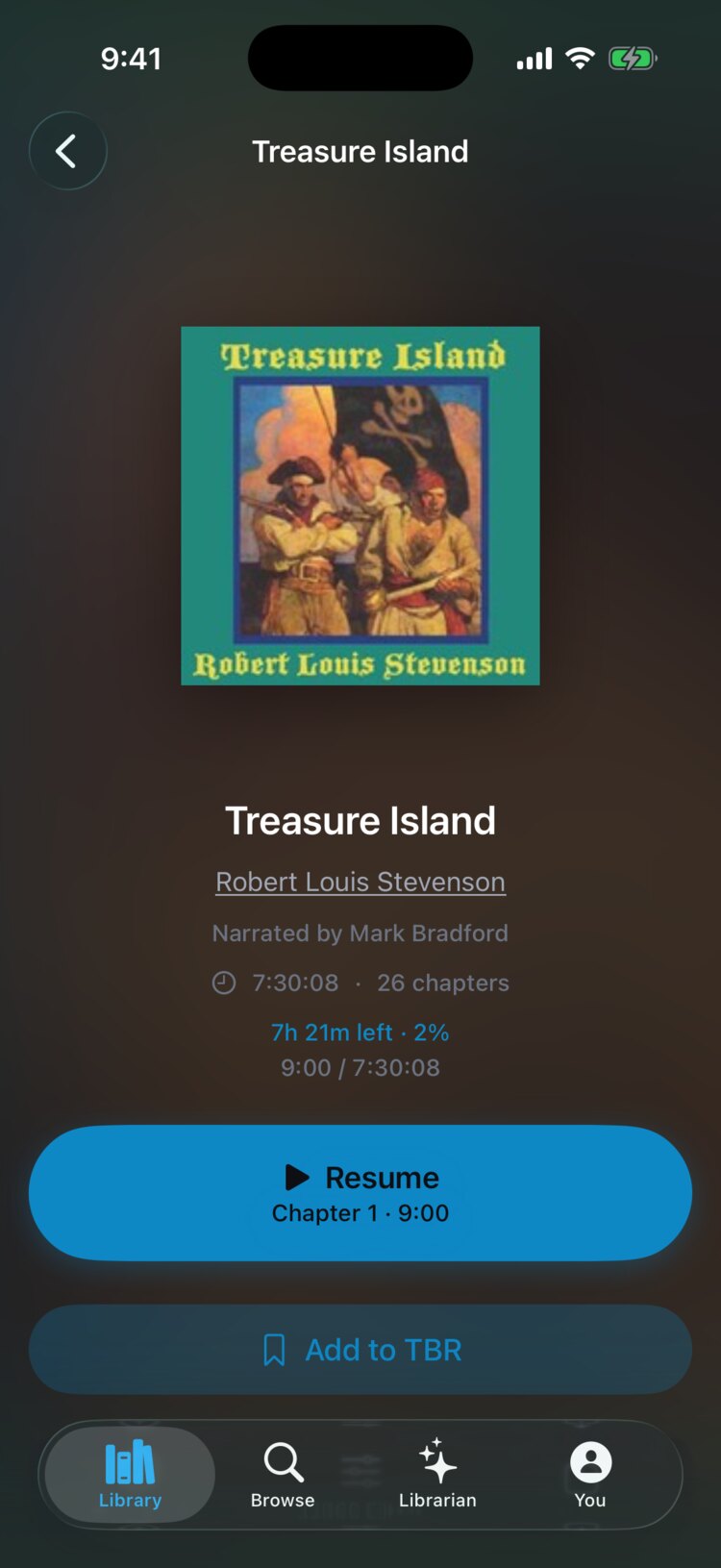
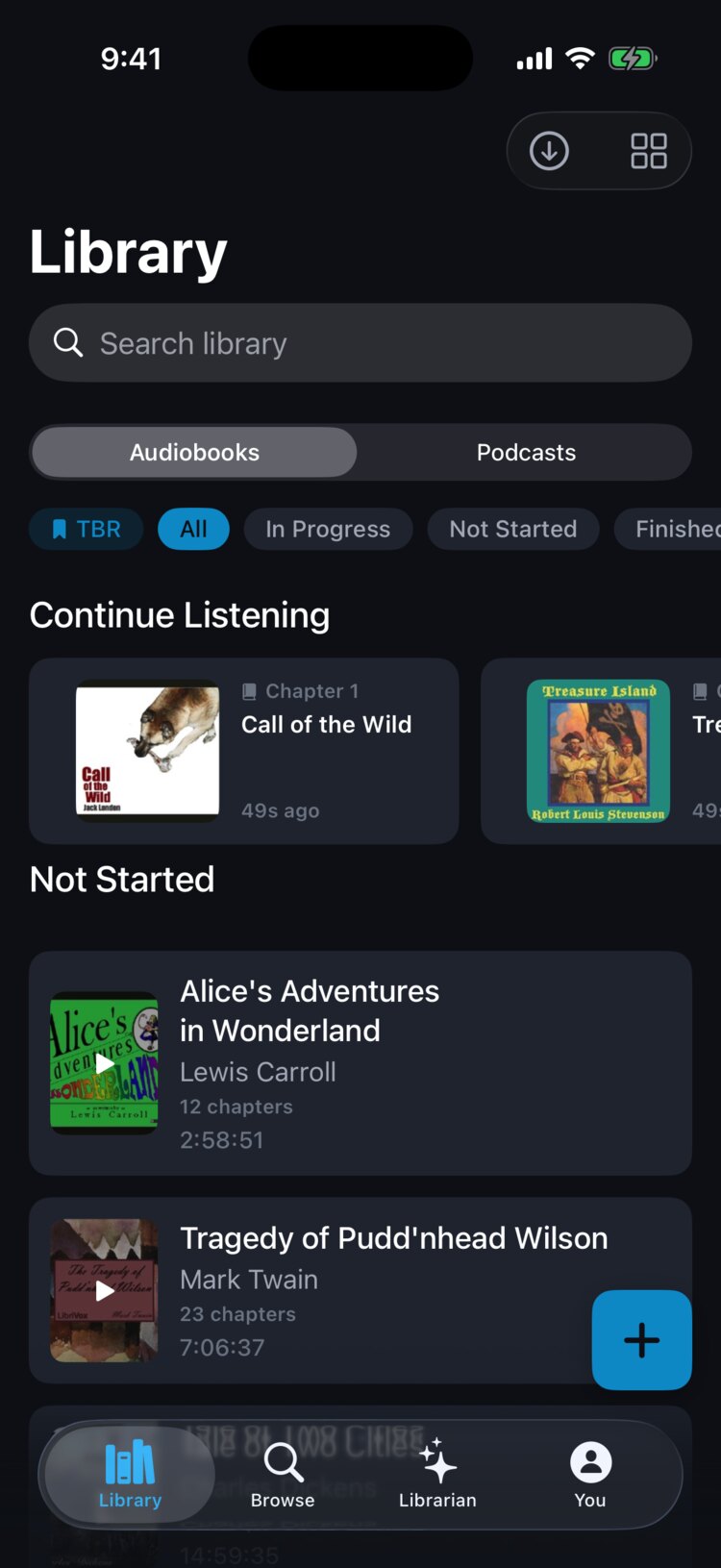
AudioHaven has four tabs at the bottom of the screen: Library (your books and podcasts), Browse (the catalog), Librarian (your reading assistant), and You (your profile, Taste Profile, and Settings).
Browsing the catalog
The Browse tab is where you discover content. It's organized into rows so you can scan what's available, and you can browse by genre.
The catalog has public domain classics you can play right away, a large library of podcasts, and modern audiobooks that have filters ready. Some modern titles show "Import to Play": you bring your own copy from a store like Libro.fm, and AudioHaven applies the filters to it.
Searching for specific titles
Use search in the Browse tab to look up a title, author, or keyword. Results include audiobooks and podcasts.
If a book isn't there yet, see "Requesting New Content" for how to ask for it.
Adding to your library
Open a book's detail page and tap "Add to Library." The book appears in your Library tab. To save a book for later, tap "Add to TBR" and it goes on your to-be-read list, which you open with the TBR chip in the Library tab.
Your playback progress is saved even if you remove a title and add it again later.