Linking Libro.fm, AudiobooksNow, and Downpour
Connect a store account to see the audiobooks you own, which ones have filters, and get filters for the rest.
In this article
Which stores you can link
You can link a Libro.fm, AudiobooksNow, or Downpour account. These stores sell DRM-free audiobooks, which is what lets AudioHaven play your copy with filters.
Linking needs AudioHaven 1.0.9 or later on iPhone (1.0.62 on Android) for Libro.fm. AudiobooksNow and Downpour need the latest version of the app, so update if you don't see them.
How to link a store
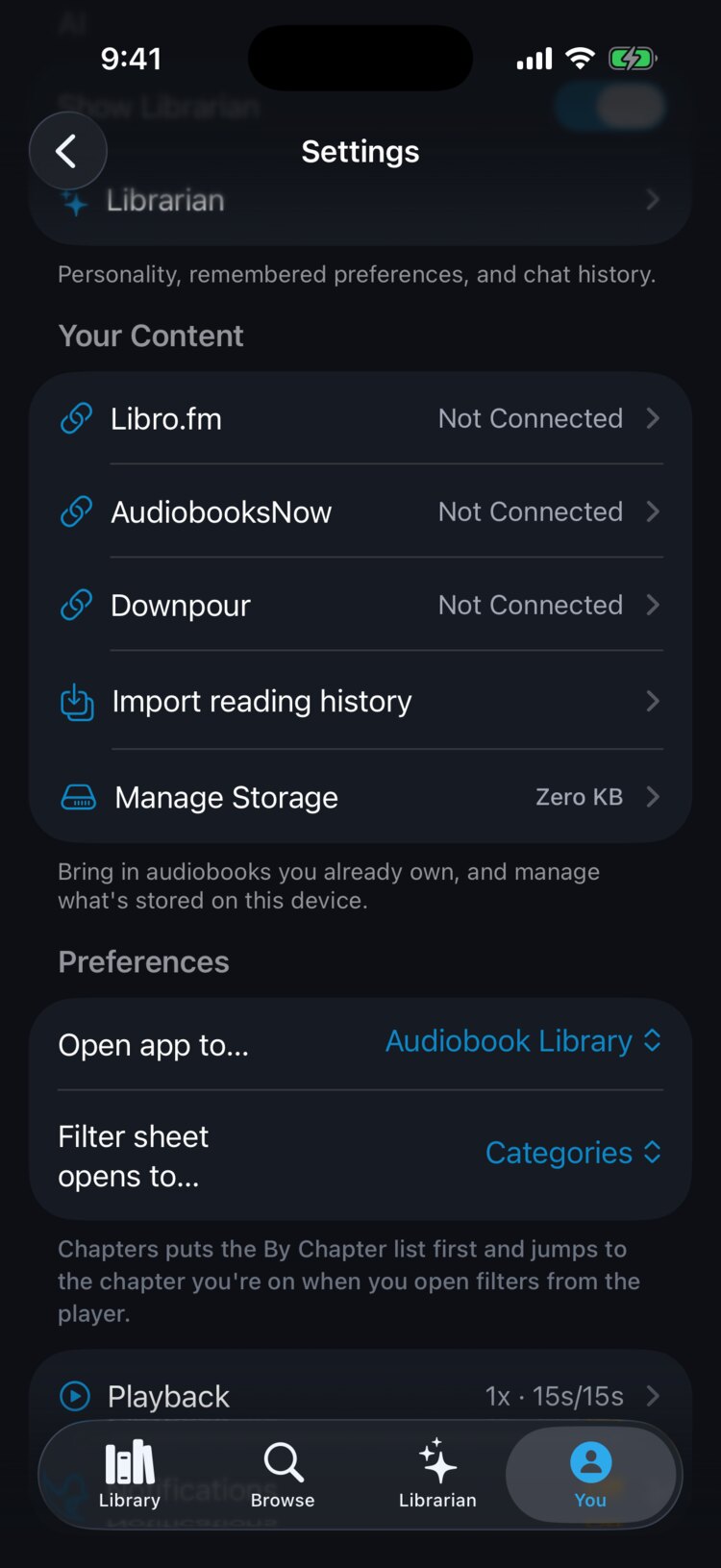
Go to Settings, then Your Content. Each store has its own row showing "Not Connected" or connected. Tap a store, choose "Connect," and sign in with your store account.
You can also connect a store during onboarding, or from a book's import options.
Your store library
Once linked, the store's screen lists the audiobooks you own in two groups: "Needs filters" and "Filters ready." The tiles at the top count how many books are Filters ready, In progress, and Needs filters.
Connecting doesn't download anything by itself. When you want to listen to a book, import it with one tap. The audio file downloads to your device and plays from there.
Getting filters for a book that needs them
Books under "Needs filters" can have a "Get filters" button. Tapping it imports the book and uploads it to us for filtering, using one filter credit unless another listener has already uploaded the same edition. Most books are ready within 3 days.
A row that says "We can't filter this edition yet" is an edition we can't make filters for right now. A row that says "Can't be downloaded here yet" is a book AudioHaven can't download from that store yet.
Your store sign-in stays on your device
Your store session is stored only on your phone, in the iPhone Keychain or Android's encrypted storage. It is never sent to AudioHaven's servers.
To unlink, open the store from Settings, then Your Content, and choose "Disconnect." That removes the session from your device.